

An Expert Advisor can monitor forex markets and trade automatically, but only while MetaTrader 5 is actually running.
That sounds obvious, yet it is one of the most common weak points in automated forex trading setups.
A trader may have a thoroughly tested EA configured on EURUSD, GBPUSD, USDJPY, XAUUSD, or another instrument, but if MetaTrader 5 is running on a personal laptop, the entire system still depends on that computer remaining powered on, connected to the Internet, and free from sleep, crashes, forced restarts, or local network problems.
A VPS for MetaTrader 5 changes that.
Instead of leaving MT5 on a home computer, the platform runs on a remote Windows server in a data center. The Expert Advisor remains attached to its chart and continues processing new ticks even after the trader disconnects from Remote Desktop or turns off the local PC.
For forex strategies designed to trade throughout the normal Sunday-to-Friday market week, this creates a practical 24/5 MT5 automation environment.
The goal is not simply to have Windows running.
A reliable EA setup needs several layers to remain healthy:
VPS → Windows → MetaTrader 5 → broker connection → chart → Expert Advisor → Auto Trading → order execution
If any one of those layers fails, the server may technically still be online while the strategy has stopped trading.
This guide explains how to set up an MT5 Expert Advisor on a VPS for 24/5 operation, including server sizing, installation, EA migration, Auto Trading settings, broker connectivity, startup behavior, monitoring, backups, multiple MT5 instances, latency, and the common mistakes that cause supposedly “always-on” trading bots to stop.
Why Run an MT5 Expert Advisor on a VPS?
MetaTrader 5 Expert Advisors are designed to automate analytical and trading tasks.
An EA can monitor incoming prices, calculate indicators, evaluate trading rules, open and close positions, modify stops, manage risk, and react to events according to its MQL5 logic.
But an EA is still software running inside MetaTrader 5.
If the platform closes, the EA stops.
If the computer sleeps, the EA stops receiving ticks.
If the home Internet connection fails, the platform may disconnect from the broker.
If Windows restarts and MT5 does not reopen correctly, the strategy may remain offline until the trader notices.
MetaTrader’s own documentation describes virtual hosting as useful specifically because trading robots require continuous connectivity to the trade server and uninterrupted power.
A VPS removes many of the household dependencies.
The server is hosted in a professional data-center environment rather than on a laptop connected to residential broadband.
That means the trader can:
- close the local computer,
- leave home,
- switch networks,
- or lose residential Internet access
without automatically stopping the MetaTrader instance running remotely.
This is particularly useful for EAs that trade during Asian, European, and U.S. sessions rather than only while the trader is awake.
What Does 24/5 MT5 Trading Actually Mean?
Forex is commonly described as a 24-hour, five-day market.
In practice, trading normally begins late Sunday and continues until Friday afternoon or evening depending on broker server time and instrument.
That does not mean every broker and every symbol follows exactly the same schedule.
XAUUSD, indices, CFDs, and individual instruments can have daily maintenance periods or slightly different trading sessions.
Therefore, a 24/5 VPS setup means:
the MT5 platform and EA remain available throughout the trading week whenever the broker’s market is open.
It does not mean:
- every symbol trades continuously,
- the broker never performs maintenance,
- the EA must always hold a position,
- or there can never be a connection interruption.
The VPS provides continuous infrastructure.
The broker still controls instrument trading hours and trading-server availability.
Step 1: Choose the Right VPS for MetaTrader 5
A basic Expert Advisor does not necessarily need a large server.
The required resources depend on how many MetaTrader terminals, charts, indicators, and EAs are running simultaneously.
A simple setup might contain:
one MT5 terminal + one EURUSD chart + one lightweight EA
A heavier setup might contain:
four MT5 terminals + 20 charts + several EAs + custom indicators + Python services + reporting tools
Those environments should not be placed on identical VPS plans.
A practical starting guide is:
| MT5 workload | Practical VPS starting point |
|---|---|
| 1 simple EA, 1–2 charts | 1–2 fast CPU cores, 4–8 GB RAM |
| Several EAs and charts | 2 fast cores, 8 GB RAM |
| Multiple active EAs | 4 fast cores, 16 GB RAM |
| Multiple MT5 terminals | 4–6 cores, 16–24 GB RAM |
| Heavy multi-account setup | 6–8+ cores, 24–32 GB+ RAM |
These are not MetaQuotes minimum requirements.
They are practical starting points for preserving headroom.
Why CPU Performance Matters for MT5 EAs
MetaTrader 5 can use multiple processing threads, but individual charts, indicators, and Expert Advisors can still depend heavily on specific CPU threads.
This means high single-core performance remains important.
A VPS with many very slow virtual CPU cores may not necessarily outperform a smaller number of high-clock cores for live EA execution.
This becomes more noticeable during:
- major news releases,
- high tick activity,
- multiple simultaneous strategies,
- complex custom indicators,
- or heavy calculations inside
OnTick().
For a live MT5 VPS, it is generally better to maintain spare CPU capacity than to run the server continuously near 100%.
Why RAM Matters
RAM usage increases as more charts, terminals, indicators, history data, and applications are opened.
One lightweight MT5 terminal may use relatively little memory.
Several terminals running many markets can consume substantially more.
If Windows begins running short of physical memory, performance can degrade.
For that reason, 8 GB is a practical starting point for many modest EA setups, while 16 GB or more gives additional headroom for multi-terminal environments.
Why NVMe Storage Helps
Disk speed does not reduce broker network latency.
It does help with:
- MT5 startup,
- local history databases,
- log files,
- EA files,
- Strategy Tester data,
- cached market information,
- terminal updates,
- and multiple MT5 installations.
NVMe storage therefore improves the responsiveness of the local VPS environment even though it does not make an order travel faster across the network.
Step 2: Choose the VPS Location Based on Your Broker Server
For MT5 forex trading, the best VPS location is usually the location with the shortest and cleanest route to the broker’s trading server.
This is different from futures trading.
For CME futures, Chicago is often the logical location because of exchange infrastructure.
For MT5 forex, the broker determines the destination.
One broker may host MT5 infrastructure in New York.
Another may use London.
Another may operate servers in Frankfurt or Amsterdam.
That means the trader should not simply choose the VPS nearest to their own home.
If you live in Asia but your broker’s trade server is in London, a London VPS may provide lower broker latency than a server near your home.
A common network path is:
EA → MT5 terminal → broker trading server → broker liquidity/execution infrastructure
The VPS primarily affects the first network leg between MetaTrader and the broker.
TradingVPS currently offers MetaTrader-compatible Windows infrastructure in locations including New York, London, Frankfurt, and Amsterdam, using Ryzen 9 9950X CPU resources, DDR5 memory, NVMe storage, and dedicated IPv4 connectivity.
The practical approach is:
find the broker server → test latency → choose the VPS location
rather than selecting a city from marketing claims alone.
Step 3: Connect to the Windows VPS
Most MT5 Expert Advisors are easiest to run on a Windows VPS.
After ordering the VPS, the provider normally supplies:
- IP address,
- username,
- password,
- and Windows login details.
On a Windows computer, use Remote Desktop Connection.
Enter the VPS IP address and credentials.
Once connected, you will see a full remote Windows desktop.
From that point, treat the server as a dedicated trading computer.
The important distinction is:
disconnecting Remote Desktop does not shut down MetaTrader.
Closing the RDP window simply disconnects your local screen from the remote server.
Do not select Shut Down when you only want to stop viewing the VPS.
If Windows shuts down, MT5 and the EA shut down too.
Step 4: Update Windows and Secure the VPS
Before installing MetaTrader 5, configure the server properly.
Set a strong administrator password.
Keep Windows security features active.
Avoid using the server for unrelated browsing or software.
Do not install random applications that consume background resources or increase the attack surface.
A trading VPS is easier to manage when it remains a dedicated trading environment.
Only the software needed for the trading workflow should remain installed.
If Remote Desktop is publicly accessible, use strong credentials and follow sensible access controls.
Depending on the environment, firewall rules or additional access restrictions can also be appropriate.
Step 5: Install MetaTrader 5 From Your Broker
MetaTrader 5 can be installed using the standard MT5 installer, but many forex traders should use the installer or server configuration supplied by their broker.
MetaTrader’s standard installer downloads the platform and can also support multiple installations in separate directories when several accounts need to run simultaneously.
The typical process is:
1. Download the MT5 installer.
Prefer the broker’s official download if the broker provides a customized terminal.
2. Install MetaTrader 5.
Use the default folder for one installation.
3. Launch MT5.
4. Log in to the trading account.
Use:
File → Login to Trade Account
Enter:
- account number,
- trading password,
- and broker server.
5. Confirm the connection.
The platform should display live price activity and an active server connection.
Before attaching any EA, confirm that manual market data and account connectivity are working correctly.
Step 6: Install the Expert Advisor
The EA normally exists as either:
.ex5 — compiled Expert Advisor
or
.mq5 — MQL5 source code.
To install it manually:
Open MetaTrader 5.
Go to:
File → Open Data Folder
Then open:
MQL5 → Experts
Copy the Expert Advisor file into the appropriate Experts directory.
Return to MT5.
In the Navigator panel, right-click Expert Advisors and refresh, or restart the terminal.
The EA should then appear under:
Navigator → Expert Advisors
MetaTrader’s documentation confirms that trading robots are started by attaching them to a chart.
If the EA requires additional files, follow the developer’s instructions.
Some EAs may also depend on:
- custom indicators,
- DLLs,
- libraries,
- preset
.setfiles, - external APIs,
- or licensing software.
Do not assume that copying one EX5 file is enough for every commercial EA.
Step 7: Open the Correct Symbol and Timeframe
The EA must be attached to a chart.
Open the required symbol from Market Watch.
For example:
EURUSD
Then select the timeframe expected by the strategy:
M1, M5, M15, H1, or another timeframe.
This matters because some EAs use the active chart timeframe directly.
Others calculate their own timeframe internally.
If the EA was designed and tested specifically for EURUSD M15, attaching it to GBPJPY H1 may produce entirely different behavior.
Always follow the strategy’s documented symbol and timeframe requirements.
Also confirm the broker’s exact symbol naming.
A broker might use:
EURUSD
while another could use:
EURUSD.a
EURUSDm
EURUSD.pro
or another suffix.
An EA hard-coded to look for an exact symbol name can fail if the broker uses a different format.
Step 8: Attach the Expert Advisor to the Chart
Drag the EA from:
Navigator → Expert Advisors
onto the desired chart.
Alternatively, double-click the EA.
MetaTrader opens the EA properties window.
Configure:
- input parameters,
- lot sizing,
- stop logic,
- risk percentage,
- trading sessions,
- magic number,
- spread filters,
- and other strategy-specific settings.
If the EA uses a preset file, load the appropriate .set configuration.
Then enable:
Allow Auto Trading
for that specific Expert Advisor.
MetaTrader distinguishes between EA-level permission and global platform permission. Even if the EA itself allows trading, it cannot place trades if platform-wide Auto Trading is disabled.
This is one of the most common MT5 setup mistakes.
Step 9: Enable Global Auto Trading
Go to:
Tools → Options → Expert Advisors
Confirm that:
Allow Auto Trading
is enabled.
Then check the AutoTrading / Algo Trading status in the main platform toolbar.
The exact interface wording can vary slightly by build, but the key principle is unchanged:
both the terminal and the EA must permit automated trading.
MetaTrader’s official documentation states that if platform-wide automated trading is disabled, Expert Advisors can continue running analytically but cannot execute trades.
That creates a common failure case:
The chart is open.
The EA appears attached.
Ticks arrive.
The EA log looks active.
But no trade is placed.
The trader then assumes the EA is broken when the actual issue is simply Auto Trading permission.
Step 10: Understand the Safety Settings
The MT5 Expert Advisors settings include several protective options.
For example, automated trading can be disabled when:
- switching accounts,
- switching profiles,
- or changing the chart symbol/timeframe.
MetaTrader documents these as safety mechanisms intended to prevent an EA from unexpectedly continuing to trade after a major environment change.
For a 24/5 VPS setup, review these options carefully.
Do not simply disable every safety feature because it is inconvenient.
Instead, understand how your EA behaves.
If you manually change the chart timeframe, should the EA immediately continue trading?
If you switch from a demo account to a live account, should all EAs remain active?
In many cases, disabling automated trading after those changes is exactly the safer behavior.
Step 11: Save the MT5 Profile
MetaTrader profiles preserve chart environments.
They can store chart layouts, indicators, and attached Expert Advisors.
MetaTrader’s documentation notes that profiles and templates can include active Expert Advisors and their settings.
After configuring the EA:
Save the profile.
Use a descriptive name such as:
EURUSD-EA-Live
or
MultiEA-Production
This makes recovery easier if the workspace changes.
Templates can also be saved for individual chart configurations.
The objective is to make the trading environment reproducible rather than relying on memory.
Step 12: Test the EA on Demo Before Going Live
A VPS should not be the first place an untested EA meets a live account.
Run the Expert Advisor on a demo account first.
Confirm:
- the EA loads,
- price data arrives,
- Auto Trading is enabled,
- orders are created correctly,
- stops and targets behave correctly,
- lot sizing matches expectations,
- symbols are recognized,
- spreads are handled correctly,
- and no errors appear in the Experts or Journal tabs.
Also test the EA through different market sessions.
A strategy can behave differently during London, New York, and Asian liquidity.
If the EA includes a time filter, confirm the relationship between:
- broker server time,
- VPS Windows time,
- UTC,
- and the time zone used during backtesting.
Time-zone errors can cause a strategy intended for London open to trade several hours too early or too late.
Step 13: Close Remote Desktop and Confirm the EA Keeps Running
Once the setup works correctly, disconnect from the VPS.
Do not close MetaTrader.
Do not log off Windows unless you understand how the application is configured.
Simply disconnect the RDP session.
Wait.
Then reconnect.
Check:
- MT5 connection,
- EA status,
- Experts log,
- Journal,
- recent ticks,
- and account activity.
If everything remains active, the basic remote hosting environment is functioning correctly.
This is a simple but important test.
The whole point of the VPS is that MetaTrader should keep running after your local device disconnects.
Step 14: Make MT5 Recover After a Windows Restart
Running 24/5 does not mean the server will literally never restart.
Windows updates, infrastructure maintenance, or manual restarts can occur.
A professional setup should therefore answer:
What happens after reboot?
A common approach is to configure Windows so MetaTrader launches automatically after login or startup.
MT5 also supports command-line startup options, including specifying a login, profile, or configuration file.
Profiles are important because the current chart layout can contain the attached Expert Advisors.
The trader should test the complete recovery process.
Restart Windows intentionally.
Then verify:
Does MT5 reopen?
Does the correct account connect?
Does the correct profile load?
Are the charts restored?
Are the EAs attached?
Is automated trading still allowed?
Does the EA correctly recognize existing broker positions?
This last question is particularly important.
EA Restart Behavior Is More Important Than Many Traders Realize
Suppose the EA is long EURUSD.
The VPS restarts.
The position remains open at the broker.
When MT5 returns, what does the EA do?
A robust EA should reconcile its internal logic with the actual account state.
A poorly designed EA might assume:
“No local state = no position.”
It could then enter another EURUSD trade even though one already exists.
That can accidentally double exposure.
This is not primarily a VPS problem.
It is an EA design problem.
But running the EA unattended makes restart behavior much more important.
Before live 24/5 operation, understand whether the strategy identifies positions using:
- symbol,
- magic number,
- order comments,
- persistent files,
- account history,
- or internal variables.
Then test recovery under real restart conditions on demo.
Step 15: Monitor the Experts and Journal Logs
A VPS can be online while the EA is malfunctioning.
That is why server uptime alone is not enough.
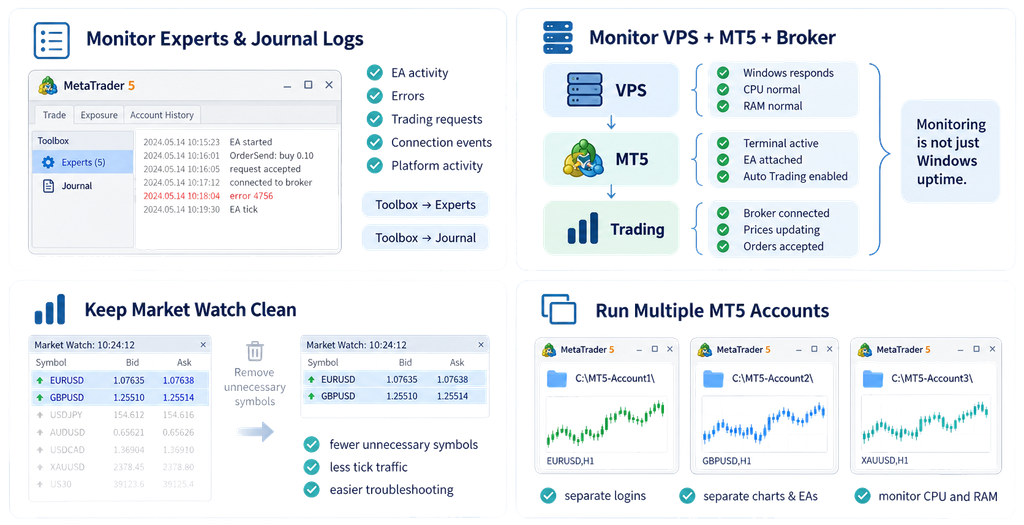
MetaTrader includes logs that record:
- EA activity,
- errors,
- trading requests,
- connection events,
- and platform activity.
Monitor both:
Toolbox → Experts
and
Toolbox → Journal
Look for messages such as:
- trade disabled,
- market closed,
- invalid volume,
- insufficient margin,
- invalid stops,
- connection lost,
- authorization failed,
- DLL not allowed,
- or symbol unavailable.
Many “VPS problems” are actually EA or broker errors visible in these logs.
MetaTrader’s Task Manager can also show CPU and memory resources consumed by charts, symbols, services, and individual Expert Advisors.
This is useful when several EAs run on one server.
If one badly optimized EA is using unusually high CPU, it can affect the responsiveness of the rest of the terminal.
Step 16: Monitor the Broker Connection, Not Just Windows
The most important status indicator for an EA is often whether MT5 remains connected to the broker.
A server can have:
- perfect Windows uptime,
- low CPU,
- available RAM,
- and stable Remote Desktop
while MetaTrader is disconnected.
If the broker connection is down, the EA may not receive current prices or submit new orders.
A proper monitoring process should therefore consider:
VPS health
and
MT5 health
and
broker connectivity
separately.
For example:
Layer 1 — VPS
- Windows responds
- CPU normal
- RAM normal
- disk space available
- network online
Layer 2 — MT5
- terminal process active
- correct profile loaded
- EA attached
- Auto Trading enabled
Layer 3 — trading
- broker connected
- prices updating
- account authorized
- order requests accepted
That distinction is central to reliable automated trading.
Step 17: Keep the EA’s Market Watch Clean
MetaTrader can receive price information for many symbols simultaneously.
If the EA only trades EURUSD and GBPUSD, there is little reason to keep hundreds of unnecessary symbols active.
MetaTrader’s own virtual-hosting guidance recommends keeping only symbols required by EAs in Market Watch in order to reduce unnecessary tick traffic.
The same principle makes sense on a normal Windows VPS.
A clean environment can reduce unnecessary processing and make troubleshooting easier.
This matters more when several terminals or dozens of EAs run on the same server.
Step 18: Running Multiple MT5 Accounts on One VPS
Many traders want to run more than one account.
One MT5 terminal instance normally logs in to one trading account at a time.
If you need several accounts active simultaneously, install multiple MetaTrader instances into different folders.
MetaTrader’s official installation guidance explicitly supports installing the platform into separate directories for simultaneous work with multiple accounts.
For example:
C:\MT5-Account1\
C:\MT5-Account2\
C:\MT5-Account3\
Each instance can then have:
- its own login,
- charts,
- EAs,
- profiles,
- and settings.
Resource requirements increase accordingly.
Three MT5 instances are not equivalent to one.
Monitor memory and CPU usage and scale the VPS before the server becomes overloaded.
How Many MT5 EAs Can One VPS Run?
There is no fixed universal number.
One simple EA might consume almost no CPU.
Another might calculate dozens of indicators on every tick across several symbols.
The correct question is:
How much resource does the actual workload use during active markets?
MT5’s built-in Task Manager can help identify EA CPU usage.
As a general example:
A 2-core/8 GB VPS may comfortably run several lightweight charts and EAs.
A 4-core/16 GB VPS is more appropriate for a larger collection of strategies or multiple terminals.
Heavy optimization, local databases, Python integration, or high-frequency tick processing may require substantially more.
Keep spare CPU and memory headroom.
Do not wait until the server is permanently at 95% utilization before upgrading.
Latency: How Important Is It for an MT5 EA?
Latency matters, but not equally for every strategy.
A long-term H4 swing EA holding positions for several days may barely notice the difference between 2 ms and 30 ms broker latency.
A fast scalping EA may be much more sensitive.
The network path is roughly:
EA → MetaTrader terminal → broker server
Reducing physical and network distance to the broker can reduce the time required for trade requests to reach that server.
However, VPS latency does not control:
- broker internal processing,
- liquidity-provider routing,
- market movement,
- spread widening,
- order type,
- requotes where applicable,
- or slippage.
This is why claims such as “1 ms VPS means 1 ms execution” are misleading.
One number describes part of the network path.
Execution includes several additional systems.
The best practice is to choose a VPS near the broker server, then test actual trading behavior under realistic conditions.
Should You Use MetaTrader’s Built-In Virtual Hosting or a Full Windows VPS?
MetaTrader 5 also offers its own integrated Virtual Hosting service.
MetaQuotes designed it specifically for running EAs and Signals continuously. The trading environment can be migrated to the virtual platform, and the server can be selected based on proximity to the broker.
This can be convenient for simple setups.
However, it is different from a full Windows VPS.
MetaTrader Virtual Hosting
Advantages include:
- built directly into MT5,
- easy environment migration,
- simple EA/Signal hosting,
- broker-proximity selection,
- minimal Windows administration.
Full Windows VPS
A full VPS can be preferable when the workflow requires:
- several MT5 installations,
- multiple trading accounts,
- Python,
- external APIs,
- databases,
- custom monitoring,
- local files,
- trade copiers,
- browser tools,
- custom services,
- or other Windows applications.
A full Windows VPS provides more control.
The tradeoff is that the user is responsible for maintaining that Windows environment.
Neither approach is universally better.
The correct choice depends on the complexity of the automation stack.
A Practical MT5 VPS Setup for 24/5 EA Trading
For a modest automated forex environment, a practical setup might be:
| Component | Suggested setup |
|---|---|
| Operating system | Windows Server 2022 |
| CPU | 4 fast CPU cores |
| RAM | 16 GB |
| Storage | NVMe SSD |
| Network | Stable low-latency data-center connection |
| IP | Dedicated IPv4 |
| Platform | MetaTrader 5 |
| Location | Near broker trade server |
| Workload | Several charts + lightweight EAs |
| Monitoring | MT5 connection, EA logs, CPU/RAM, open positions |
TradingVPS‘s current Standard MetaTrader configuration, for example, provides 4 Ryzen 9 9950X CPU resources, 16 GB DDR5 RAM, 500 GB NVMe storage, a dedicated IPv4 address, and Windows Server 2022. Its larger Standard configuration provides 4 cores and 16 GB RAM for heavier multi-chart workloads.
The point is not that one plan is right for every trader.
A good VPS should be sized from the workload.
If you run one lightweight EA, oversized infrastructure provides little benefit.
If you run 15 EAs across four terminals, undersizing the VPS can create real operational problems.
Frequently Asked Questions About Running an MT5 EA on a VPS
Yes. If MetaTrader 5 and the EA are running on a VPS, your personal computer can be turned off while the VPS continues operating.
Usually the location closest in network terms to the broker’s trading server. New York, London, Frankfurt, and Amsterdam are common financial infrastructure locations, but the correct choice depends on the broker.
Yes. Install multiple MetaTrader instances into different folders and log each one into a separate account.
Yes. Multiple EAs can run across different charts. MetaTrader allows one Expert Advisor per chart.
Yes, on a full Windows VPS, assuming the server has enough resources and the Python workflow is compatible with your setup.
Yes, if the EA uses normal MT5 resources or calls remote AI APIs. Local AI inference may require substantially more CPU and RAM capability.
Final Thoughts: Reliable MT5 EA Hosting Is More Than Leaving a Server On
Running an MT5 Expert Advisor on a VPS 24/5 is one of the simplest ways to remove a home computer from the critical path of an automated forex strategy.
The basic setup is straightforward:
choose a VPS close to the broker, install MT5, install the EA, attach it to the correct chart, enable Auto Trading, test it, and leave the VPS running.
But reliable automation requires more than those steps.
The VPS needs enough CPU and RAM.
MetaTrader must remain open.
The broker connection must stay active.
The EA must remain attached.
Auto Trading must remain enabled.
The correct symbol and timeframe must be loaded.
The strategy must know how to recover after a restart.
And the trader needs to monitor the system well enough to distinguish:
server online
from
strategy actually operating correctly.
That distinction is important.
A VPS can show 99.99% infrastructure uptime while an EA has been disabled for six hours.
Windows can be healthy while MT5 is disconnected.
MT5 can be connected while the EA is throwing trade errors.
And the EA can be running perfectly while the broker has temporarily closed the instrument.
For this reason, the strongest 24/5 setup monitors the entire chain:
VPS health → MT5 process → broker connection → EA state → trading activity
For traders using one or more MT5 Expert Advisors, a high-clock Windows VPS with 8–16 GB RAM, NVMe storage, stable networking, and a location close to the broker’s trade server provides a strong general foundation.
TradingVPS currently offers MetaTrader-compatible infrastructure in locations such as New York, London, Frankfurt, and Amsterdam, with Ryzen 9 9950X CPU resources, DDR5 RAM, NVMe storage, dedicated IPv4 addresses, and Windows Server 2022.
The hardware still needs to match the strategy.
A lightweight EURUSD EA does not need the same resources as four MT5 terminals running dozens of charts and automated systems.
And low latency should always be evaluated against the actual broker server rather than from a generic advertised number.
The VPS does one very important job:
it gives the Expert Advisor a computer that does not depend on your personal computer remaining online.
Everything after that—strategy quality, position sizing, risk controls, execution logic, restart recovery, and monitoring—still needs to be designed correctly.
A good 24/5 MetaTrader setup is therefore not simply:
“My VPS is online.”
It is:
“My VPS is online, MT5 is connected, the EA is active, Auto Trading is enabled, the account state is correct, and I know what will happen if any part of the system restarts.”
That is the difference between merely hosting an EA and operating an automated trading system reliably.
This article is provided for general technical and educational purposes only and does not constitute financial, investment, legal, or trading advice. Automated and leveraged trading involves substantial risk. Expert Advisor behavior, broker execution, trading hours, spreads, margin requirements, MetaTrader settings, and platform features can change. Always test automated systems on demo and verify broker and platform settings before live use.