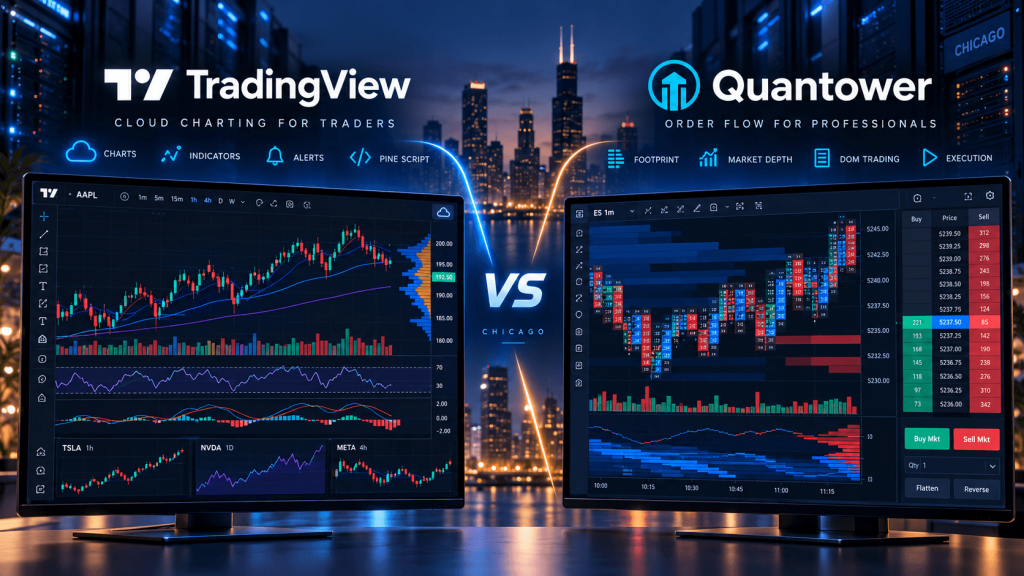
TradingView and Quantower can both display futures charts, volume information, Depth of Market, technical indicators, and trading interfaces, but they are built around noticeably different workflows.
TradingView is primarily a cloud-first charting and analysis ecosystem. Traders can open charts from a browser, use the desktop application on Windows, macOS, or Linux, create Pine Script indicators and strategies, set server-side alerts, and connect supported futures brokers for trading. Its desktop application largely brings the TradingView web experience into a dedicated multi-window environment rather than turning TradingView into a traditional locally hosted futures terminal. TradingView alerts also continue running on TradingView’s servers after the trader closes the browser or desktop application.
Quantower approaches the problem from the opposite direction. It is a Windows desktop trading platform built heavily around direct market interaction, volume analysis, Depth of Market, footprint charts, order-flow visualization, and broker/data-feed connectivity. Its order-flow toolkit includes Cluster Charts, multiple Volume Profiles, VWAP, Historical Time & Sales, Time Statistics, cumulative delta-style data, DOM Trader, and DOM Surface heatmaps that visualize changes in resting limit-order liquidity over time.
That makes the comparison more interesting than simply asking which platform has better charts.
TradingView is generally strongest when the trader wants flexible cloud charting, Pine Script, alerts, cross-device access, and a large indicator ecosystem.
Quantower becomes particularly interesting when the trader wants desktop futures execution, bid/ask volume analysis, footprint charts, Market by Order data, DOM-based trading, and a deeper local order-flow workspace.
The important question is therefore:
Do you primarily analyze markets through charts, or do you trade through the order book and executed volume?
TradingView vs Quantower: The Core Difference
A simplified comparison looks like this:
| Feature | TradingView | Quantower |
|---|---|---|
| Main architecture | Cloud-first web/desktop platform | Local Windows desktop platform |
| Primary strength | Charting, Pine Script, alerts | Order flow, DOM, volume analysis |
| Operating systems | Web + Windows/macOS/Linux desktop | Windows 10/11 officially |
| Footprint charts | Yes | Yes, Cluster/Footprint charts |
| DOM | Yes with supported broker/data | Advanced DOM Trader |
| Liquidity heatmap | More limited | DOM Surface |
| Volume Profile | Yes | Extensive profile tools |
| Pine Script | Yes | No |
| Algo language | Pine Script | C# through Quantower Algo |
| Strategy testing | Pine Strategy Reports | Backtest & Optimize |
| Server-side alerts | Yes | Local platform workflows |
| Market by Order | Broker/data dependent | Rithmic MBO supported |
| VPS need | Usually low for normal alerts/charting | More relevant for always-on desktop workflows |
The biggest mistake would be assuming that TradingView is only for basic charts while Quantower is the only platform with footprint or DOM functionality.
TradingView has expanded significantly into volume and order-flow visualization. Its current Volume Footprint charts show buy/sell distributions at price levels, volume delta, Point of Control, Value Area, imbalances, stacked imbalances, and alert conditions based on footprint activity. TradingView also provides a DOM when a connected broker supplies supported Level 2 data.
Quantower still approaches order flow more deeply as a core part of the desktop platform, particularly when the trader wants to combine footprint data, actual trade records, DOM changes, liquidity heatmaps, aggressor information, MBO data, and order execution in one workspace.
Why TradingView Is Stronger for Cloud Charting and Everyday Analysis
TradingView’s biggest strength is how little infrastructure the trader needs to maintain.
Charts, layouts, Pine scripts, alerts, and broker integrations are accessible from a web-based environment, while TradingView Desktop adds features such as synchronized tabs, multi-monitor support, linked symbols, native notifications, and crosshair synchronization across windows. The desktop application is available for Windows, macOS, and Linux.
For someone analyzing ES, NQ, GC, CL, and several non-futures markets, that flexibility can be difficult to beat. The same workspace can combine traditional indicators, custom community scripts, drawings, screeners, multiple chart types, and Pine Script logic without requiring a dedicated Windows trading machine.
TradingView alerts are another major advantage. Alerts run on TradingView’s servers rather than depending on the trader’s own computer. A Pine Script strategy alert also runs as a server-side copy of the strategy once the alert is created. That means a laptop can be shut down while the alert continues monitoring its defined condition.
This architecture works particularly well for a trader whose workflow looks like:
market analysis → Pine Script condition → TradingView alert → trader notification
or:
TradingView chart → connected broker → manual order
A VPS provides relatively little benefit to that basic setup because TradingView is already handling much of the persistent infrastructure.
Quantower’s Advantage Is Deeper Desktop Order Flow
Quantower becomes much more differentiated when the trader starts asking questions such as:
Where exactly did aggressive buying occur inside this candle?
How much bid-versus-ask volume traded at each price?
How has visible liquidity changed in the DOM over the last several minutes?
Were large resting orders added, cancelled, or executed near this level?
These are order-flow questions rather than ordinary technical-chart questions.
Quantower’s Cluster Chart, also known as a footprint or OrderFlow chart, can show volume, trades, buy/sell volume, delta, and diagonal bid/ask imbalances at individual price levels. Its imbalance mode specifically compares aggressive buy activity lifting the offer with aggressive sell activity hitting the bid.
Historical Time & Sales adds another layer by letting the trader select an earlier candle and inspect the trades that occurred within that bar, including time, last price, trade size, aggressor flag, and tick direction.
The DOM Surface goes beyond executed volume and visualizes changes in resting limit orders. Quantower describes it as a heatmap showing order-book activity including the placement, modification, cancellation, and execution of limit orders.
This is the key difference.
Footprint analysis asks:
What traded?
DOM Surface analysis can also help answer:
What liquidity was waiting to trade, and how did that liquidity change?
For futures traders who make decisions from the order book rather than primarily from indicators, that deeper desktop environment can be more useful than a general-purpose charting platform.
TradingView Has Footprints Too—but the Data Method Matters
TradingView adding Volume Footprint charts narrowed what used to be a much larger gap between it and dedicated order-flow platforms.
However, traders should understand how the calculation works.
TradingView currently constructs its footprint by examining lower-timeframe intrabars. It classifies intrabar volume as buy or sell based on the direction of the intrabar’s price movement. For professional plans it can begin with 1-tick data where available, then move through other lower intervals as historical depth requires. TradingView also notes that historical footprint appearance can change because less granular intrabar data may be used farther back in history.
That is different from assuming every historical footprint value is a direct exchange aggressor classification.
Quantower, when connected to an appropriate futures data provider, can work with buy/sell trade data, aggressor flags, bid/ask volume, full trade history, and Level 2 information supplied through that connection.
For Rithmic users, Quantower can go further by enabling Market by Order, or MBO, where supported. Instead of seeing only total liquidity at a price level, MBO can expose individual order sizes inside Level 2 data. Quantower’s current Rithmic integration lets traders enable MBO and display it in DOM Trader.
That can matter to a trader studying ES or NQ market microstructure.
For someone who simply wants to see POC, delta, imbalances, and volume distribution alongside conventional charts, TradingView’s footprint implementation may already be sufficient.
For someone whose actual strategy revolves around bid/ask aggression, individual prints, DOM liquidity, and MBO, Quantower is built more specifically for that workflow.
DOM Trading Is Another Major Difference
TradingView does offer Depth of Market.
When a supported broker supplies Level 2 data, traders can view bids and offers at multiple price levels and place limit or stop orders through the DOM interface. TradingView’s current list of brokers supporting Level 2 data includes several futures-oriented connections such as AMP, EdgeClear, Interactive Brokers, NinjaTrader, Optimus Futures, StoneX, Tradovate, and others.
Quantower treats DOM as a much more central trading interface.
DOM Trader can be used to view exchange order-book liquidity and submit or modify orders directly from the price ladder. Quantower also supports chart trading, hot buttons, mouse trading, and multiple basic and connection-specific order types.
The exact order types and whether brackets or OCO logic are server-side depend on the selected connection. For example, Quantower’s current documentation lists server-side brackets and OCO for supported Rithmic configurations, while CQG has its own supported order behavior.
That connection-specific detail is important.
Neither TradingView nor Quantower can create exchange functionality that the broker or data/execution provider does not support.
The full path remains:
platform → broker/connectivity provider → exchange
Pine Script vs Quantower Algo
Automation is another area where the platforms differ significantly.
TradingView uses Pine Script, a purpose-built language for indicators, strategies, and alerts. It is especially effective for expressing chart-based trading logic and turning that logic into visual signals or server-side alerts.
A Pine strategy might calculate VWAP, an opening range, cumulative conditions, and session filters, then create alerts whenever the entry criteria are met.
This makes TradingView particularly attractive for traders who want:
strategy logic → chart visualization → alert
The important distinction is that a Pine strategy running on TradingView is not automatically a locally executing futures bot. Strategy order fills are simulated by TradingView’s broker emulator for testing, while live automated execution generally requires an additional supported execution workflow or external bridge depending on the intended setup.
Quantower uses a different model.
Quantower Algo allows developers to build strategies and indicators using C# and common development practices rather than a proprietary chart language. Its current development environment integrates with Visual Studio, while Strategies Manager can launch and monitor multiple live strategies and Backtest & Optimize handles historical testing and parameter optimization.
That makes the two programming environments suited to different developers:
Pine Script is highly convenient for chart-based ideas and alerts.
C# / Quantower Algo is more appropriate when the strategy needs to behave like a traditional locally running trading application.
Broker and Data Connections Matter More in Quantower
TradingView abstracts much of the market-data experience behind its own symbol ecosystem and supported broker integrations.
Quantower is more explicitly connection-driven.
Its current connection documentation includes environments such as Rithmic, CQG through AMP Futures, Interactive Brokers, Topstep, ProjectX, cTrader, OANDA, IQFeed, and other providers depending on asset class.
For futures traders, Rithmic and CQG are particularly relevant because the connection determines what depth, trade history, order types, and other information Quantower can display.
Quantower’s Rithmic integration supports CME, CBOT, NYMEX and other futures markets, full market depth, optional MBO data, and an RTrader Plugin Mode that can allow another platform to use the same Rithmic credentials through RTrader Pro.
Its CQG/AMP connection provides futures access along with Quantower’s footprint, VWAP, TPO, DOM, and volume-analysis environment.
This is why comparing screenshots alone can be misleading.
A Quantower workspace without the appropriate data feed will not magically produce professional exchange order-flow information.
The data connection is part of the product.
TradingView vs Quantower for Futures Day Trading
For a discretionary futures trader, the choice depends heavily on how the trade is found.
A trader who identifies ES setups from market structure, moving averages, previous-day levels, VWAP, drawings, multi-timeframe context, and Pine indicators may prefer TradingView. It is easy to access from multiple devices, the charting environment is extremely flexible, and alerts can monitor conditions without keeping a local computer running.
A trader whose decision process depends on footprints, bid/ask delta, executed-volume imbalances, Time & Sales, MBO, volume profiles, and DOM liquidity may prefer Quantower.
A hybrid workflow is also possible.
For example:
TradingView → higher-timeframe structure and alerts
Quantower → footprint/DOM confirmation and order execution
That approach avoids forcing either platform to do something outside its strongest area.
Which Platform Needs a VPS?
This is one of the clearest differences between the two.
Normal TradingView charting and alerts do not require a VPS. TradingView alerts are server-side and continue running after the user’s computer is turned off.
A VPS becomes useful only if the TradingView workflow includes something local, such as a webhook receiver, custom execution bridge, trade copier, database, or another automation process that needs to remain online.
Quantower is different because the actual trading platform is a Windows desktop application. Quantower currently officially supports Windows 10 and Windows 11, and recommends approximately 16 GB RAM, at least a four-core CPU, and SSD storage for a fast system.
If a Quantower strategy, Rithmic connection, DOM workspace, or other local process needs continuous operation, the computer running Quantower needs to remain active.
That is where a remote trading machine can become useful.
For CME-focused futures trading, Chicago is a logical infrastructure region to evaluate, particularly for connections such as Rithmic where Quantower itself identifies Aurora Chicago as the default real-account server environment.
A practical architecture can therefore be:
Trader → Remote Desktop → Chicago trading VPS → Quantower → Rithmic/CQG → CME
TradingVPS offers Chicago infrastructure with high-clock Ryzen CPU resources, DDR5 memory, NVMe storage, and dedicated IPv4 connectivity that can fit this type of persistent trading workload. Because Quantower officially documents Windows 10/11 support, traders should verify the exact operating-system image and Quantower compatibility with their VPS provider before deployment rather than assuming every Windows Server environment is formally supported.
A VPS does not make order flow more accurate or guarantee faster fills. Its job is to provide a stable remote computer close to the relevant trading infrastructure and remove dependence on a home PC, household power, and residential Internet.
Frequently Asked Questions About TradingView vs Quantower
Quantower provides a deeper dedicated order-flow environment, including Cluster/Footprint charts, bid/ask volume, Historical Time & Sales, DOM Surface heatmaps, volume profiles, and supported Rithmic MBO data. TradingView now offers Volume Footprints and DOM as well, but its overall platform remains more broadly focused on charting and analysis.
Yes. Quantower supports direct Rithmic connectivity, RTrader Plugin Mode, full market depth, and optional Market by Order data.
Yes. Quantower Algo supports custom strategies, Strategies Manager handles live strategy operation, and Backtest & Optimize provides historical testing and optimization.
Pine Script strategies can generate simulated strategy orders and server-side alerts. Fully automated broker execution generally requires a compatible external execution workflow rather than assuming a Pine strategy directly becomes a broker-side trading bot.
Final Thoughts: TradingView for Flexible Charting, Quantower for Deeper Order Flow
The difference between TradingView vs Quantower becomes much clearer when the decision is based on workflow rather than the number of features listed on a product page.
TradingView is a strong fit for traders who value cloud accessibility, multi-device charting, Pine Script, server-side alerts, large indicator libraries, technical analysis, and straightforward broker integration.
Its capabilities have also expanded beyond ordinary candlestick charts. Volume Footprints and DOM mean that TradingView can now cover a meaningful amount of order-flow analysis without requiring a separate specialist platform.
Quantower goes further in a different direction.
It is built more like a professional desktop execution and market-microstructure workstation. Cluster Charts, bid/ask volume, delta, Historical Time & Sales, DOM Trader, DOM Surface, MBO support, Volume Profiles, VWAP, and direct connection-specific execution tools make it particularly attractive to futures traders who make decisions from exchange activity rather than primarily from indicators.
That leads to a simple practical distinction:
TradingView is usually stronger as a flexible charting and signal environment.
Quantower is usually stronger as a dedicated desktop order-flow and execution environment.
For many traders, there is no reason to make the choice exclusive.
TradingView can handle broad market analysis and alerts while Quantower stays open for ES or NQ footprint analysis, DOM execution, and Rithmic/CQG connectivity.
The VPS question follows the same logic.
TradingView’s core charting and alert functions already run in the cloud, so putting TradingView itself on a VPS usually adds little.
Quantower runs locally on Windows, so an always-on remote machine can make much more sense when strategies, data connections, order-flow workspaces, or supporting services need to remain active during the futures trading session.
Ultimately, the better setup depends on what information actually drives the trading decision.
If the trader asks:
“What does the chart structure tell me?”
TradingView may be the more natural workspace.
If the trader asks:
“What are buyers, sellers, executed volume, and resting liquidity doing at this exact price?”
Quantower may be the more natural workspace.
And if both questions matter, using the two platforms together can provide a stronger workflow than forcing either platform to handle every part of the trading process.
This article is provided for general technical and educational purposes only and does not constitute financial, investment, legal, or trading advice. Futures trading involves substantial risk. Platform functionality, data-feed capabilities, broker integrations, subscriptions, order types, and operating-system support can change. Always verify current TradingView, Quantower, broker, and market-data documentation before relying on a trading workflow.