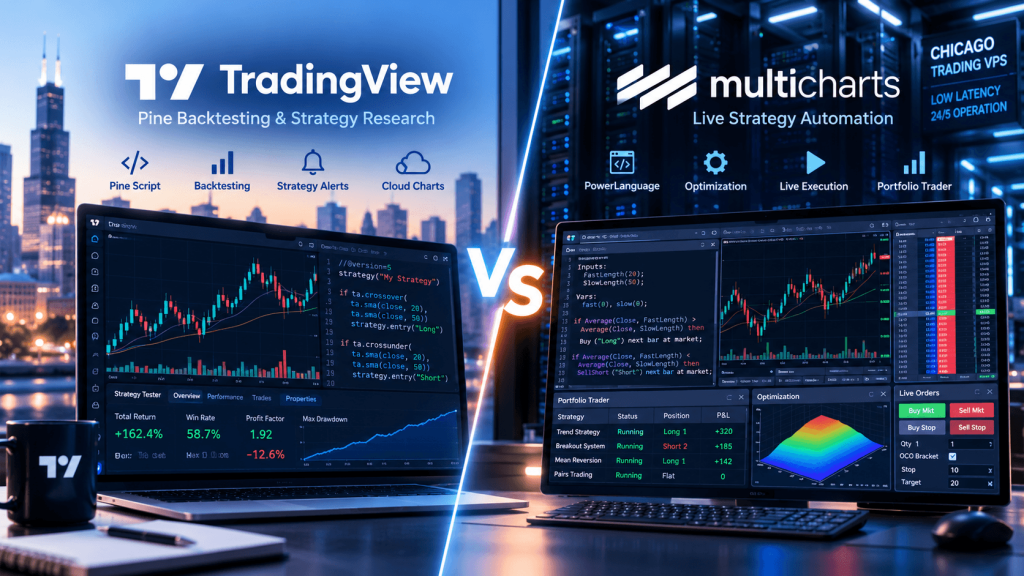
TradingView and MultiCharts can both be used to design, backtest, optimize, and monitor algorithmic trading strategies, but they approach automation from very different directions.
TradingView is primarily a cloud-first charting and strategy-development environment built around Pine Script. Traders can create strategies directly on charts, simulate trades with TradingView’s broker emulator, review strategy reports, use deeper historical testing, and run server-side strategy alerts without keeping a local computer online. What TradingView does not currently provide is native live broker automation directly from a Pine Script strategy. TradingView’s current documentation explicitly states that Pine strategies are limited to backtesting and that automated strategy trading through connected brokerage accounts is not yet available natively.
MultiCharts is much closer to a traditional desktop algorithmic trading workstation. Strategies written in PowerLanguage—or C# and VB.NET through MultiCharts .NET—can be backtested, optimized, forward-tested and then connected directly to supported broker profiles for live automated execution. MultiCharts also includes Portfolio Trader for applying strategies across large groups of instruments and routing live orders to brokers.
That creates the central difference:
TradingView is exceptionally convenient for developing, visualizing and testing strategies in the cloud.
MultiCharts is designed to carry a strategy further into persistent, broker-connected live automation.
For algorithmic traders, especially futures traders, the better platform depends on whether the main goal is rapid strategy research and alert generation or running production trading systems that directly manage live orders.
TradingView vs MultiCharts: The Core Difference
A simplified comparison looks like this:
| Feature | TradingView | MultiCharts |
|---|---|---|
| Main architecture | Cloud-first | Windows desktop |
| Strategy language | Pine Script | PowerLanguage / EasyLanguage-style syntax |
| .NET development | No | C# and VB.NET with MultiCharts .NET |
| Historical backtesting | Yes | Yes |
| Deep historical testing | Yes, plan dependent | Yes |
| Intrabar precision | Broker Emulator / higher detail options | Bar Magnifier / tick-based precision |
| Optimization | More limited | Exhaustive, genetic, walk-forward |
| Portfolio backtesting | Limited strategy-by-strategy workflow | Dedicated Portfolio Trader |
| Server-side alerts | Yes | Platform needs to remain running for local strategy execution |
| Native strategy-to-broker automation | No | Yes |
| Live broker synchronization | Not through Pine strategies | Synchronous / asynchronous modes |
| Multiple strategies/instruments | Research possible | Designed for portfolio automation |
| VPS relevance | Usually low for Pine alerts | High for always-on live automation |
The platforms therefore overlap heavily during strategy development but separate sharply at the execution stage.
A TradingView strategy typically follows:
Pine Script → backtest → Strategy Report → realtime strategy alert → notification or external bridge
A MultiCharts workflow can continue further:
PowerLanguage strategy → backtest → optimize → forward test → broker profile → live automated orders
That last step is the biggest difference.
Why TradingView Is Easier for Strategy Development and Backtesting
TradingView’s strength is accessibility.
A trader can open a chart, launch Pine Editor, create a strategy, compile it, see entry and exit markers immediately, and inspect results without setting up a local database, broker API, Windows trading server or separate development environment.
Pine strategies use TradingView’s broker emulator to simulate order execution. Market, limit, stop and stop-limit behavior can be modeled, while strategy settings can incorporate commissions, slippage, leverage assumptions, execution delays and other variables intended to make testing more realistic. TradingView’s current Broker Emulator also provides controls for conservative limit-order fills, one-tick execution delays and the use of actual OHLC data instead of synthetic Heikin-Ashi values.
For example, a futures trader could write a Pine strategy around:
ES above VWAP + opening-range breakout + volume confirmation + session filter + fixed stop + 2:1 target
and immediately see hypothetical historical trades on the chart.
TradingView can also increase historical precision. Higher plan levels support deeper historical testing and more detailed intrabar execution modeling. Deep Backtesting can run a strategy across more of the available historical dataset, while higher bar detail can reduce some of the assumptions the broker emulator needs to make about how price moved inside a candle.
This makes TradingView particularly effective for:
- testing trading ideas quickly,
- comparing indicators,
- visual strategy debugging,
- building custom signals,
- evaluating multiple timeframes,
- and sharing scripts with other traders.
Pine is also easier to learn than many general-purpose programming languages because it was designed specifically for chart calculations and trading logic.
The limitation appears when a strategy is ready for production.
The Biggest TradingView Limitation: Pine Strategies Do Not Natively Autotrade Broker Accounts
This distinction is essential.
A Pine strategy can simulate orders.
A Pine strategy can generate alerts.
A Pine strategy can run its alert logic on TradingView’s servers.
But a Pine strategy still cannot directly take control of a broker connected through TradingView’s Trading Panel and automatically place its simulated strategy orders into that brokerage account. TradingView continues to state that native broker auto-trading from Pine strategies is unavailable.
This means:
Pine strategy order ≠ live broker order.
TradingView’s strategy engine sends hypothetical orders to its broker emulator. When simulated fills occur in realtime, strategy alerts can trigger.
Those alerts are very useful because TradingView hosts them on its own infrastructure. Once an alert is created, TradingView stores a copy of the strategy and its settings on its servers, and it can continue monitoring conditions even when the trader’s browser or computer is offline.
A common automated workflow therefore becomes:
Pine strategy → TradingView alert → webhook → external execution service → broker API
This can absolutely be used to build automated trading systems, but the important point is that the external execution layer is doing the brokerage automation, not Pine Script itself.
That additional bridge introduces another component that needs monitoring for authentication, duplicate messages, stale alerts, retries, broker errors and position reconciliation.
MultiCharts approaches this problem differently.
MultiCharts Is Designed for Live Strategy Automation
MultiCharts allows a strategy applied to a chart to connect directly to a supported broker plug-in and send live orders according to the programmed trading logic.
The basic workflow is:
market data → MultiCharts strategy → broker plug-in → brokerage account → exchange
After a strategy has been tested and configured, the trader selects the appropriate broker profile and activates auto-trading. MultiCharts provides Synchronous Auto Trading (SA) and Asynchronous Auto Trading (AA) modes, which determine how the strategy’s chart state relates to actual broker executions.
Synchronous mode is generally easier to understand operationally because orders appear as strategy trades only after execution confirmation is received from the broker. MultiCharts starts the live strategy from a flat strategy state unless an existing broker position is explicitly assigned, helping align chart and brokerage state.
Asynchronous mode behaves more like the historical strategy calculation: strategy-generated orders appear according to the strategy logic even if the broker execution state differs. That preserves more continuity with historical calculations, but the chart position and actual brokerage position can diverge.
That difference matters in production.
Suppose a strategy submits an ES buy order but the broker rejects it.
In asynchronous mode, the strategy can potentially continue operating based on its internal state even though the real brokerage account never entered the trade.
In synchronous mode, the strategy places more emphasis on broker execution confirmations.
Neither mode eliminates every failure scenario, which is why live automated trading needs monitoring and reconciliation regardless of platform.
Pine Script vs PowerLanguage
The programming-language comparison also reflects the broader platform philosophy.
Pine Script is purpose-built for TradingView. It is particularly strong for indicators, chart calculations, strategy research and alerts. The language hides much of the infrastructure required to process historical bars, making it possible to express sophisticated trading ideas with relatively little code.
PowerLanguage is MultiCharts’ traditional strategy language and has strong compatibility with non-object-oriented EasyLanguage studies. Existing EasyLanguage users can therefore reuse or adapt a substantial amount of trading-system code inside MultiCharts.
PowerLanguage is designed around actual trading-system development. Strategies can interact with MultiCharts’ auto-trading environment and move from historical analysis directly into broker execution.
For developers needing more flexibility, MultiCharts .NET supports C# and VB.NET. MultiCharts describes the .NET edition as providing access to lower-level infrastructure and more complex programming capabilities than the traditional PowerLanguage environment.
A practical distinction is:
Pine Script → easier, faster chart-based development
PowerLanguage → traditional automated trading development
MultiCharts .NET → more advanced C#/VB.NET engineering
The best language depends on how complex the final system needs to become.
Backtesting Precision: TradingView Broker Emulator vs MultiCharts Bar Magnifier
Both platforms warn traders not to treat historical backtests as guarantees of live execution.
TradingView normally uses available chart data to determine simulated fills. When only OHLC information is available, the broker emulator must make assumptions about the path price took inside the candle. Higher historical detail can improve this by using finer-grained data where available.
MultiCharts has a similar issue and addresses it through features including Bar Magnifier, Intra-Bar Order Generation and Precise Backtesting.
Bar Magnifier decomposes a larger chart bar into lower-resolution data. MultiCharts explicitly recommends tick data for the most precise form of this analysis because it can help resolve situations where both a profit target and stop were touched during one higher-timeframe candle.
For example, imagine a 5-minute futures candle where:
High = profit target
and
Low = stop loss.
Looking only at the 5-minute OHLC values cannot tell you which level was touched first.
Using lower-resolution or tick data can provide a better reconstruction of that sequence.
MultiCharts still warns that backtests cannot perfectly reproduce live markets. Actual execution involves changing bid/ask prices, available volume, brokerage latency, exchange latency and the market’s response to real orders—all variables that historical simulations cannot reproduce perfectly.
The correct conclusion is therefore not that one platform’s backtest is automatically “accurate.”
It is that both platforms need realistic assumptions, detailed data and forward testing before live deployment.
MultiCharts Has a Major Advantage for Portfolio Algo Trading
One of MultiCharts’ strongest differentiators is Portfolio Trader.
A single TradingView Pine strategy runs against one main chart dataset at a time. TradingView’s own documentation recommends applying the strategy to different symbols separately and comparing results externally when testing across multiple markets.
MultiCharts Portfolio Trader is designed specifically for multi-instrument strategy research.
It can apply one or more strategies across large groups of stocks, futures or other instruments, incorporate portfolio-level money management, prioritize signals when capital is insufficient for every trade, perform optimization and forward testing, and ultimately send live orders to different brokers.
That becomes important for systems such as:
trend strategy across 30 futures markets
or:
three independent strategies across ES, NQ, CL, GC, ZB and 6E
or:
portfolio allocation where new entries depend on current total account exposure.
TradingView remains excellent for developing and visually testing the individual strategy logic.
MultiCharts is stronger when the strategy becomes an actual portfolio trading engine.
Broker Connectivity Is Part of the MultiCharts Architecture
MultiCharts separates market data and brokerage connections more explicitly than TradingView.
Data sources are configured through QuoteManager, while live execution uses broker profiles. The platform maintains connection guides for systems including Rithmic, CQG, Interactive Brokers and Trading Technologies, among others.
This means a trader can build an architecture such as:
data feed → MultiCharts → strategy → separate broker connection
depending on the supported services.
The exact behavior of stops, stop-limit orders and OCO groups can also depend on the broker connection. For example, MultiCharts documents situations where certain CQG OCO behavior is emulated locally by MultiCharts rather than being native at the broker. If the local platform disappears during that process, order-management behavior can therefore differ from a server-hosted OCO arrangement.
This is one reason infrastructure matters much more for MultiCharts than for a simple TradingView strategy alert.
If critical order logic is running locally, the machine matters.
Why a VPS Matters More for MultiCharts
TradingView alerts run on TradingView’s servers.
If a trader creates a Pine strategy alert and closes their laptop, the hosted alert can continue running. A VPS therefore usually adds little if the workflow ends with a TradingView notification.
MultiCharts is different because the trading engine is running locally.
For live automated execution, the relevant path may be:
Windows machine → MultiCharts → data connection → broker connection → market
If that Windows machine shuts down, loses Internet access, reboots unexpectedly or closes MultiCharts, the local strategy can no longer continue performing its normal calculations and order-management tasks.
That makes a Windows VPS particularly useful for persistent MultiCharts automation.
A futures-oriented setup might look like:
Trader → Remote Desktop → Chicago VPS → MultiCharts → Rithmic/CQG/broker → CME
Chicago is a logical VPS region to evaluate for CME-focused strategies because much of the futures connectivity ecosystem is concentrated around Chicago and Aurora. Actual performance still depends on the broker, gateway, data provider and routing path.
For a modest MultiCharts setup, a practical starting point might be:
| Workload | VPS Starting Point |
|---|---|
| 1–2 simple strategies | 2 fast cores, 8 GB RAM |
| Several futures strategies | 4 fast cores, 16 GB RAM |
| Multiple charts + optimization | 4–6 cores, 16–24 GB RAM |
| Portfolio Trader / heavier research | 8+ cores, 32 GB+ RAM |
High single-core performance is important for responsive strategy processing, while additional cores and memory become increasingly useful for optimization, large portfolios and multiple simultaneous workloads.
NVMe storage is also useful because MultiCharts maintains local historical data, cached data, workspaces and strategy-related files.
TradingVPS’s Chicago infrastructure can fit this type of always-on Windows trading workflow, but the VPS does not replace strategy monitoring. Broker disconnects, rejected orders, strategy errors and position mismatches still need to be detected.
MultiCharts 17 Adds AI—but It Does Not Change the Core Comparison
MultiCharts 17, released September 25, 2026, added an AI Assistant powered through Model Context Protocol (MCP). The integration can work with compatible AI assistants to open and read charts, apply indicators and signals, develop PowerLanguage studies, inspect account information and assist with manual trading actions.
That is a significant addition, particularly for strategy development.
However, it does not change the fundamental TradingView vs MultiCharts distinction.
AI can help write strategy code.
AI can help analyze charts.
AI can help inspect accounts.
But a production algorithm still needs deterministic trading logic, risk rules, broker connectivity and reliable runtime infrastructure.
The core MultiCharts advantage remains that the same platform used to design and test a strategy can also operate as the live automated execution engine.
Which Platform Is Better for Different Algo Traders?
TradingView generally makes more sense if the trader wants to:
- develop strategies quickly,
- learn a relatively accessible scripting language,
- visualize strategy logic directly on modern charts,
- run server-side alerts,
- test individual symbols,
- share or publish scripts,
- or use webhooks to integrate with external systems.
MultiCharts generally makes more sense if the trader wants to:
- run fully automated strategies directly through broker connections,
- maintain tight control over broker/strategy synchronization,
- perform tick-sensitive backtesting,
- use exhaustive or genetic optimization,
- conduct walk-forward analysis,
- automate multiple strategies,
- manage portfolios of instruments,
- or build more traditional always-on trading infrastructure.
Some traders may use both.
A research workflow could be:
TradingView → quick strategy idea and visual prototype
then:
MultiCharts → production implementation, deeper testing, optimization and live execution
The strategy logic would need to be translated carefully because Pine and PowerLanguage do not necessarily calculate every indicator, session condition or execution rule identically.
Frequently Asked Questions About TradingView vs MultiCharts
Not natively. TradingView currently states that automated broker trading from Pine Script strategies is not available. Pine strategies simulate orders through TradingView’s broker emulator.
Yes. MultiCharts strategies can connect through supported broker plug-ins and send live orders when auto-trading is enabled.
Synchronous mode updates strategy trades based on confirmed broker executions, helping keep the strategy chart aligned with the brokerage account under supported conditions.
For many new developers, yes. Pine was designed specifically for chart indicators and strategies. PowerLanguage has a more traditional systematic-trading workflow and strong compatibility with EasyLanguage-style code.
MultiCharts has the stronger dedicated architecture because Portfolio Trader can apply strategies across large groups of instruments with portfolio-level money management and optimization.
For CME-focused futures automation, Chicago is a logical region to evaluate. The best location still depends on the broker, data feed and actual gateway route.
Final Thoughts: TradingView Is Better for Cloud Strategy Research, MultiCharts for Live Automation
The difference between TradingView vs MultiCharts for algo trading becomes clearest at the point where a strategy needs to move from a simulated environment into a real brokerage account.
TradingView makes strategy development unusually accessible.
A trader can write Pine Script, visualize trades on a chart, adjust parameters, use Strategy Reports, model commissions and slippage, perform deeper historical analysis and create server-side alerts without operating a dedicated trading machine.
For research and signal development, that is a very strong environment.
MultiCharts goes further toward traditional algorithmic execution.
A strategy can be written in PowerLanguage or, with MultiCharts .NET, C#/VB.NET; tested with detailed historical data; refined using optimization and walk-forward tools; deployed across multiple markets with Portfolio Trader; and ultimately connected directly to supported broker infrastructure for live automated execution.
That leads to a useful distinction:
TradingView is primarily a cloud strategy-development and signal platform.
MultiCharts is a desktop strategy-development and live execution platform.
For traders who only need alerts, TradingView’s hosted infrastructure may eliminate the need for an always-on computer entirely.
For traders who want MultiCharts continuously controlling live broker orders, the machine running the platform becomes part of the trading system. In that architecture, a properly configured Windows VPS can provide the persistent environment required for strategies, data feeds and broker connections to stay active independently of a home PC.
Neither approach guarantees that a profitable backtest will remain profitable live.
TradingView’s broker emulator cannot reproduce every aspect of real brokerage execution.
MultiCharts’ Bar Magnifier and tick-level backtesting cannot reproduce every change in order-book liquidity, latency or market impact.
The strongest workflow on either platform remains:
define rules → backtest → model realistic costs → test intrabar behavior → forward test → validate broker execution → deploy cautiously → monitor continuously.
The final choice therefore depends on where the trader wants the automation to end.
If the goal is:
“Build and test a strategy, then generate reliable cloud alerts,”
TradingView is difficult to beat.
If the goal is:
“Build, test, optimize and then have the same platform operate the live broker-connected strategy continuously,”
MultiCharts is the more purpose-built solution.
This article is provided for general technical and educational purposes only and does not constitute financial, investment or trading advice. Automated trading and futures trading involve substantial risk. Backtested performance does not guarantee live results. Platform functionality, broker integrations, data feeds and automation features can change, so always verify current TradingView, MultiCharts and broker documentation before deploying live strategies.