
Artificial intelligence is becoming more useful for futures traders, but there is an important difference between asking ChatGPT to explain a trading strategy and allowing an AI assistant to interact with a real brokerage account.
With the introduction of NinjaTrader’s official Model Context Protocol (MCP) integration, eligible traders can connect compatible AI assistants such as ChatGPT and Claude to supported NinjaTrader and Tradovate accounts.
Once connected, the assistant can retrieve account information, examine market data, review trading history, check risk settings, and—when explicitly authorized—place or manage futures orders.
This makes it possible to ask questions such as:
- “Show my open positions and working orders.”
- “What is the current quote and margin requirement for the active MES contract?”
- “Summarize my trading performance over the past week.”
- “Check whether a hypothetical order would pass the account’s risk checks.”
These requests can be handled through actual account and market-data tools rather than relying entirely on information typed into a conversation.
However, connecting ChatGPT or Claude to NinjaTrader does not automatically create a profitable AI trading bot. The integration gives an assistant access to specific tools; it does not remove the need for risk management, reliable data, human oversight, or strategy validation.
There is also an important infrastructure distinction. NinjaTrader’s official MCP server is hosted remotely, so connecting an AI assistant does not inherently require NinjaTrader Desktop or a Windows VPS. Traditional NinjaScript automation is different because its strategy engine runs inside NinjaTrader Desktop.
This guide explains how to connect ChatGPT or Claude to NinjaTrader using the official MCP integration, what permissions are required, how to test the connection safely, and when a TradingVPS server fits into the workflow.
Availability note: As of November 2026, NinjaTrader’s support materials describe MCP as a beta feature. Access, supported clients, tool names, and setup menus may change. The current official beta supports eligible NinjaTrader and Tradovate Brokerage accounts, not prop-firm accounts.
What Is NinjaTrader MCP and How Does It Work?
MCP stands for Model Context Protocol, an open standard that allows AI applications to interact with external tools and services through a defined interface.
Normally, ChatGPT or Claude can discuss futures trading concepts, explain NinjaScript code, or help analyze market data supplied by the user. Without an authorized connection, however, neither assistant can inspect a trader’s live NinjaTrader account or determine which orders are currently working.
MCP changes that by providing a secure way for the AI client to discover and use tools exposed by an external service.
NinjaTrader’s implementation connects the assistant to its brokerage services through a hosted MCP server.
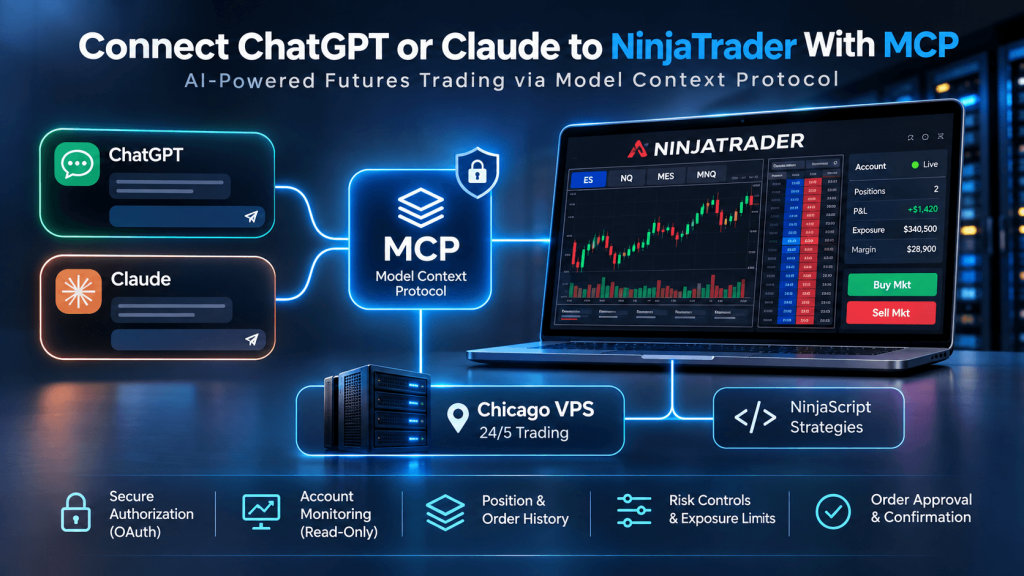
The architecture is:
ChatGPT or Claude → NinjaTrader MCP Server → Authorized Account and Market Tools
When the trader asks a question requiring account information, the assistant can call an appropriate MCP tool and use the returned data to formulate an answer.
For example, the tool my_portfolio can retrieve positions and working orders, while market_snapshot provides available quote and contract information.
Other tools support order estimates, trade history, performance reports, and account-risk settings.
Some tools are read-only. Others can change account state by placing orders, canceling orders, closing positions, or modifying risk settings.
That distinction is critical.
An MCP connection is not inherently read-only. The permissions granted during authorization determine what an AI assistant can do.
Unlike a custom NinjaTrader 8 bridge, the official hosted MCP server does not require the trader to install a local HTTP service, compile a NinjaScript AddOn, or expose a trading workstation to the public Internet.
What You Need Before Connecting ChatGPT or Claude to NinjaTrader
Before configuring the connection, make sure the brokerage account and AI client meet the current requirements.
| Requirement | What to know |
|---|---|
| Brokerage account | Eligible NinjaTrader or Tradovate Brokerage Demo or Live account |
| Prop-firm account | Not supported by the current official MCP beta |
| AI client | Compatible ChatGPT, Claude, Claude Code, or another MCP client |
| Connection type | Remote MCP using Streamable HTTP |
| Authentication | Browser-based OAuth authorization |
| First environment | Demo recommended |
| Local NinjaTrader installation | Not required for the official hosted MCP connection |
| Trading permissions | Must be explicitly authorized for order-related actions |
| VPS | Optional for MCP alone; useful for separate desktop automation |
The availability of custom MCP connections differs between AI platforms and subscription plans.
Claude currently offers remote custom connectors across several subscription tiers, although organizational policies may control who can add them.
ChatGPT supports custom MCP connections through eligible plans and workspaces. Full write-action access is more restricted than basic read-oriented integration, and users should not assume every individual ChatGPT account can enable brokerage trading tools.
If your AI client does not show the required custom connector or MCP settings, check its current plan and workspace permissions before attempting to configure NinjaTrader.
Official NinjaTrader MCP Server Addresses
NinjaTrader provides separate environments for simulated and live trading.
| Environment | MCP server endpoint |
|---|---|
| Demo | https://mcp-demo.tradovateapi.com/mcp |
| Live | https://mcp-live.tradovateapi.com/mcp |
These are functional connection endpoints, not trading-dashboard URLs.
Start with the Demo endpoint. Demo and Live have separate accounts and authorization environments. An account available on one server cannot be assumed to exist on the other.
Keeping each AI conversation tied to one clearly identified environment reduces the risk of confusion.
How to Connect Claude to NinjaTrader With MCP
Claude offers one of the more straightforward ways to connect to NinjaTrader’s official remote MCP server.
The following process uses Claude Desktop or Claude’s remote connector interface.
Step 1: Open Claude’s Connector Settings
Open Claude and navigate to its connector-management interface.
Depending on the current application version, this may appear under Settings → Connectors or Customize → Connectors.
Choose the option to add a custom connector.
Step 2: Add the NinjaTrader Demo Server
Name the connection something recognizable, such as:
NinjaTrader Demo
Enter the Demo MCP endpoint:
https://mcp-demo.tradovateapi.com/mcp
Use the supported remote MCP connection method rather than configuring an unrelated local server.
The official NinjaTrader server uses browser-based OAuth, so there is no need to paste a brokerage password into Claude’s chat window or manually create a NinjaTrader API token for this workflow.
Step 3: Authorize the Brokerage Account
When Claude attempts to connect, the authentication flow opens a NinjaTrader sign-in page in a browser.
Log in to the eligible Demo account.
Review the requested permissions carefully before approving the connection.
For an initial test, it is safer to authorize only the account and market-data functions you need.
Avoid granting live order-management permissions merely to check whether the assistant can retrieve positions.
Step 4: Enable the Connector in a Conversation
After authorization, return to Claude and make sure the NinjaTrader connector is enabled.
Start a new conversation and request a read-only account check:
“List the accounts available in my NinjaTrader Demo environment and show any open positions and working orders. Do not place or modify orders.”
If Claude retrieves the expected information, the connection is functioning.
Optional: Use Claude Code
Developers using Claude Code can register NinjaTrader’s MCP server directly through a terminal.
For the Demo environment:
claude mcp add ninjatrader-demo --transport http https://mcp-demo.tradovateapi.com/mcpThen run /mcp in Claude Code and authenticate the registered server.
This is particularly useful for developers who want to combine account information with coding, analysis, and structured development workflows.
NinjaTrader also maintains optional trading skills for compatible AI agents. These skills can help an assistant follow predefined account-review or trading workflows, but they do not grant brokerage permissions by themselves.
How to Connect ChatGPT to NinjaTrader With MCP
ChatGPT can also connect to NinjaTrader’s hosted MCP server, but the exact workflow depends on the available ChatGPT plan, workspace permissions, and application version.
In supported ChatGPT workspaces, the current custom MCP workflow is available through the Plugins interface.
Step 1: Open the Custom MCP Connection Settings
In an eligible ChatGPT workspace, open Plugins and look for the option to add a custom MCP server.
Some earlier ChatGPT interfaces use Settings → Apps → Create app with Developer Mode enabled.
The available controls may differ by plan and workspace configuration.
Full custom MCP capabilities, including write actions, are intended for supported Business and Enterprise/Edu environments. Some other accounts may have only read-oriented MCP capabilities.
Step 2: Register the NinjaTrader Demo Endpoint
Create a connection named:
NinjaTrader Demo
Choose the supported remote HTTP MCP connection option and enter:
https://mcp-demo.tradovateapi.com/mcp
Use OAuth authentication when prompted.
Do not substitute an ordinary NinjaTrader brokerage login page, Tradovate REST endpoint, or unofficial local MCP address.
Step 3: Complete OAuth Authorization
Follow the browser-based NinjaTrader authorization process.
Review the scopes being requested, particularly those involving order submission or risk-setting modifications.
Approve only the permissions needed for the intended workflow.
If the ChatGPT environment does not allow write tools, connecting successfully should not be interpreted as permission to execute trades.
Step 4: Test the Connected Tools
After adding the server, return to the ChatGPT conversation and enable the connector or plugin for the relevant message.
Try a read-only request:
“Using my NinjaTrader Demo connection, show my current positions and working orders. Do not make any account changes.”
The assistant should retrieve information through the authorized MCP tools.
If no NinjaTrader tools are available, check whether the server was added successfully, whether the OAuth flow completed, and whether the workspace permits the requested capabilities.
Never assume ChatGPT has access to a trading account simply because you entered an MCP URL. The connector must be successfully configured, authorized, and enabled.
What Can ChatGPT and Claude Actually Do With NinjaTrader MCP?
Once connected, AI assistants can use the tools exposed by NinjaTrader, subject to the account’s permissions.
The available capabilities fall into several categories.
| Capability | Example MCP tool | Account impact |
|---|---|---|
| View open positions | my_portfolio | Read-only |
| Find futures contracts | search_contracts | Read-only |
| Retrieve current prices | market_snapshot | Read-only |
| Check historical prices | market_history | Read-only |
| Estimate order feasibility | estimate_order | Read-only |
| Review past orders | order_history | Read-only |
| Summarize performance | performance_summary | Read-only |
| Inspect risk settings | risk_settings | Read-only |
| Submit orders | place_order | Changes account state |
| Modify working orders | modify_order | Changes account state |
| Cancel orders | cancel_order | Changes account state |
| Close positions | close_position | Changes account state |
| Change risk settings | update_risk_settings | Changes account state |
A particularly useful function is estimate_order.
This allows the assistant to check the feasibility of a proposed order—including relevant margin, fees, and account restrictions—without actually submitting it.
For example, a trader could ask:
“On my Demo account, identify the current MNQ contract and estimate the margin and fees for one contract. Do not place an order.”
This is a safer initial workflow than allowing the assistant to interpret a broad instruction such as “trade the Nasdaq when conditions look good.”
NinjaTrader also supports order-bracket functionality through its MCP order tools. However, bracket parameters have specific conventions; for example, the tool’s stop-loss and profit-target values are expressed as offsets rather than simply accepting every value as an absolute market price.
This is one reason to use the platform’s tool descriptions and verify every parameter before approving an execution action.
Natural-language convenience should not replace exact contract selection, order sizing, or risk verification.
How to Secure NinjaTrader MCP Before Allowing Trading Actions
Connecting an AI assistant to a brokerage account creates a different security problem from using AI to summarize market news.
A read-only account query provides information.
An authorized place_order call can create real market exposure.
Before enabling live execution, traders should establish several layers of control.
Use Demo first. Test the assistant’s ability to identify the correct account, contract month, order quantity, and environment.
Limit permissions. Start with account and market-data read access. Add order-management permissions only when they serve a specific need.
Require confirmation for trading actions. Configure the AI client to ask before placing, modifying, canceling, or closing orders. Some client configurations can allow actions without individual approval, so review these settings explicitly.
Set connection-level risk limits. NinjaTrader’s MCP authorization process supports exposure and traded-volume limits. Product or contract restrictions can also act as an allowlist, preventing the agent from opening positions in unrelated instruments.
Keep account-level risk controls in place. Margin requirements, maximum position sizes, loss limits, and other brokerage rules continue to apply to MCP orders.
Verify order status after every action. An accepted order is not necessarily a filled order. A request that times out may still have created an order, so check account state before retrying.
Monitor the brokerage account independently. Do not rely on the assistant’s description as the only confirmation that a position is open or closed.
One important operational detail is that the MCP connection’s exposure limits and the brokerage account’s risk settings are separate controls. Both are enforced, and the most restrictive applicable rule determines whether an order can proceed.
AI models can also misunderstand context, including whether the trader means ES or MES, a particular contract expiration, a long or short position, or Demo versus Live.
For that reason, human approval and deterministic risk checks remain especially important when using AI with leveraged futures.
NinjaTrader MCP vs NinjaScript: When Does a VPS Matter?
MCP-based AI assistance and NinjaScript-based trading automation solve different problems.
NinjaTrader’s official MCP server is remotely hosted and connects to supported brokerage accounts. The trader does not need to install NinjaTrader Desktop on a Windows VPS simply to use that official service.
The basic workflow is:
ChatGPT or Claude → Official NinjaTrader MCP → Brokerage Account
A traditional NinjaScript trading strategy works differently.
NinjaScript runs inside NinjaTrader Desktop, processing market events, calculating strategy conditions, and submitting orders according to programmed rules.
For a continuously operating strategy, the runtime architecture can look like:
TradingVPS Windows Server → NinjaTrader Desktop → NinjaScript Strategy → Broker Connection
If the trading strategy runs on a home PC, it depends on that computer remaining powered on, connected, and functioning correctly.
Hosting NinjaTrader Desktop on a compatible Windows VPS can reduce dependence on the trader’s local machine.
This is where TradingVPS becomes relevant.
For CME futures workflows, Chicago is a logical location to evaluate because major exchange and broker connectivity infrastructure is concentrated in the Chicago/Aurora ecosystem.
TradingVPS provides Chicago-based Windows hosting with high-frequency CPU resources, DDR5 RAM, NVMe storage, and dedicated networking for supported trading workloads.
For one lightweight NinjaScript strategy, two fast CPU cores and 8 GB RAM may be sufficient. More charts, indicators, strategies, or order-flow calculations can justify four cores and 16 GB RAM or higher.
However, running the official NinjaTrader MCP server does not require these VPS resources. The VPS is useful when separate software—such as NinjaTrader Desktop, a local trade copier, monitoring tools, or a custom strategy process—needs a persistent Windows environment.
Can MCP and NinjaScript Work Together?
Yes, they can serve complementary functions, subject to account permissions and compatibility.
A trader might use NinjaScript for deterministic strategy execution while using an authorized AI assistant to review account exposure, summarize performance, or inspect risk conditions.
For example:
NinjaTrader Desktop on VPS → NinjaScript Strategy → Brokerage Account
ChatGPT or Claude → Official MCP → Account Monitoring and Analysis
This should be treated as two separate processes that may interact with the same account.
The AI assistant does not automatically control the internal NinjaScript strategy engine through the official MCP service, and the existence of an MCP connection does not provide unrestricted access to local NinjaTrader charts, scripts, files, or Strategy Analyzer.
Developers may encounter third-party MCP bridges that expose additional NinjaTrader Desktop functions. Those are distinct from NinjaTrader’s official hosted service and may require installing local NinjaScript components or additional software.
Any third-party bridge should be reviewed carefully for security, account permissions, network exposure, and compatibility before use.
Common NinjaTrader MCP Connection Problems
Several problems are relatively common during initial configuration.
| Problem | Likely cause | Recommended check |
|---|---|---|
| No MCP tools appear | Connector not authorized or enabled | Reconnect and complete browser sign-in |
| Account not found | Demo/Live environment mismatch | Verify the endpoint and account environment |
| Order tool unavailable | Missing trading permissions | Review authorized scopes and account eligibility |
| Connection stops after inactivity | Session expired | Reconnect the client |
| Authentication stops working | Expired token or refresh issue | Reauthorize through OAuth |
| Order rejected | Margin, position or product restrictions | Review the rejection and account-risk settings |
| Request times out | Tool or downstream response not confirmed | Check orders and positions before retrying |
| Prop-firm account unavailable | Account type unsupported in current beta | Use a supported account or alternative approved workflow |
The official MCP service maintains separate sessions and permissions for Demo and Live.
An account-not-found error is often caused by requesting a Demo account while the AI conversation is connected to the Live endpoint, or vice versa.
Authentication tokens also expire. Compatible clients are expected to refresh access automatically, while idle sessions may need reconnection.
If an order-related request returns an uncertain outcome, avoid immediately resubmitting the same instruction. First inspect the current orders and positions through the brokerage platform or MCP read tools.
This prevents a connectivity issue from becoming an unintended duplicate-order problem.
Frequently Asked Questions About ChatGPT, Claude and NinjaTrader MCP
Yes. NinjaTrader introduced an official remotely hosted MCP service in 2026 for eligible NinjaTrader and Tradovate Brokerage accounts. The service is described as beta and may have changing availability and features.
Yes, through the official MCP server where the user’s ChatGPT plan and workspace support custom MCP connections. Available read and write permissions depend on the account configuration and ChatGPT capabilities.
Yes. Claude supports remote MCP connectors. Eligible users can enter NinjaTrader’s official Demo or Live MCP endpoint and authorize their brokerage account through OAuth without writing custom bridge code.
Yes, when the client, account, and authorized connection support the required write actions. Orders remain subject to brokerage permissions and risk checks. Traders should begin in Demo and require confirmation before execution.
The official MCP beta currently excludes prop-firm accounts. A prop-firm login that works in NinjaTrader Desktop does not necessarily qualify for official MCP access.
Final Thoughts: Connect AI Carefully and Keep Trading Infrastructure Separate
The official NinjaTrader MCP integration makes it possible for eligible traders to connect ChatGPT or Claude to brokerage-account and market tools without developing a complete custom API bridge.
For many traders, the most useful starting point is not AI-generated trading orders.
It is read-only account visibility.
Being able to ask an assistant about current positions, recent execution history, contract details, margin requirements, or risk settings can simplify parts of the trading workflow.
More advanced features, including order placement and position management, require additional permissions and much stricter operational safeguards.
The recommended progression is:
Connect Demo → Authorize Limited Tools → Verify Account Data → Test Read-Only Workflows → Configure Risk Controls → Evaluate Trading Permissions Carefully
It is equally important to distinguish official MCP from traditional automated trading.
MCP provides an interface between AI assistants and NinjaTrader’s hosted trading services.
NinjaScript provides deterministic strategy execution inside NinjaTrader Desktop.
A Chicago VPS, such as TradingVPS, can support the second workflow by hosting the desktop trading platform and its strategies continuously, but it is not a prerequisite for connecting Claude or ChatGPT to the official MCP service.
For traders combining AI research, account monitoring, and automated futures execution, the strongest setup separates these responsibilities rather than assuming one AI assistant should control everything.
Use MCP for authorized account interaction. Use NinjaScript or other tested execution logic for deterministic automation. Use reliable hosting when local trading software must remain running.
Above all, maintain direct visibility into account positions and risk. An AI trading connection may make certain tasks more convenient, but the responsibility for every order remains with the trader.
This article is intended for technical and educational purposes only and does not constitute financial or investment advice. Futures trading involves leverage and substantial risk. AI systems can misunderstand instructions, act on outdated information, or submit unintended orders when authorized. Product availability, MCP permissions, account eligibility, and client features may change. Always test using Demo before connecting a Live account and monitor all trading activity independently.